Touchscreen Navigation System - ARABIC Language - Blank Screen (16-0066)
Reference number: 16-0066
TOUCHSCREEN NAVIGATION SYSTEM - ARABIC LANGUAGE - BLANK SCREEN
TECHNICAL SERVICE BULLETIN
| FORD: | 2012 Escape Hybrid; 2012-2015 F-550, Flex; 2012-2016 Edge, Escape, Expedition, Explorer, F-150, F-250, F-350, F-450, Fusion, Mustang, Taurus; 2015-2016 Transit |
| LINCOLN: | 2012-2014 Mark LT; 2012-2016 MKS, MKT, MKX, MKZ, Navigator; 2015-2016 MKC |
ISSUE
Some 2012-2016 vehicles equipped with a touchscreen navigation system and the language set to Arabic may exhibit a blank screen. This may be the result of the ribbon cables not being fully seated inside the front display interface module (FDIM) or an improper software configuration of the FDIM.
ACTION
Follow the Service Procedure steps to correct the condition.
SERVICE PROCEDURE
- Is the FDIM touchscreen blank with no backlight?
- Yes - proceed to Step 2.
- No - this article does not apply. Refer to Workshop Manual (WSM), Section 415-00 for normal diagnostics.
- Remove the FDIM. Refer to WSM, Section 415-00.
- Separate the FDIM from the APIM. Refer to WSM, Section 415-00.
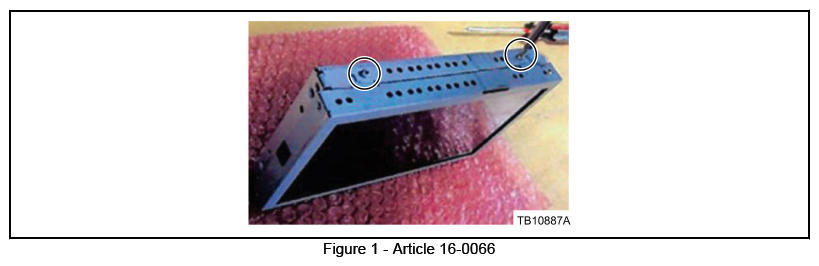
- Remove the fasteners on the top and bottom of the FDIM that secure the back cover. (Figure 1)
- Carefully remove the back cover of the FDIM.
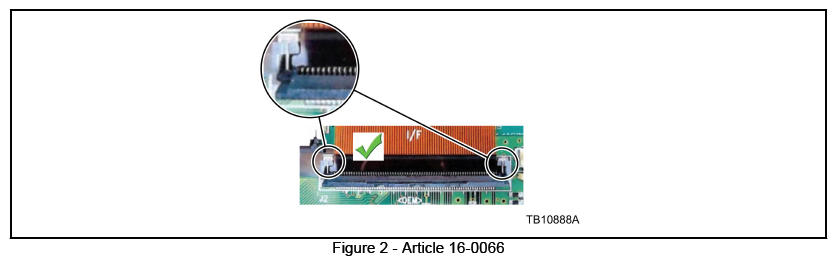
- Inspect the ribbon cable connections on the FDIM to make sure all ribbons are properly seated and the locking tabs are properly locked in place. (Figures 2-4)
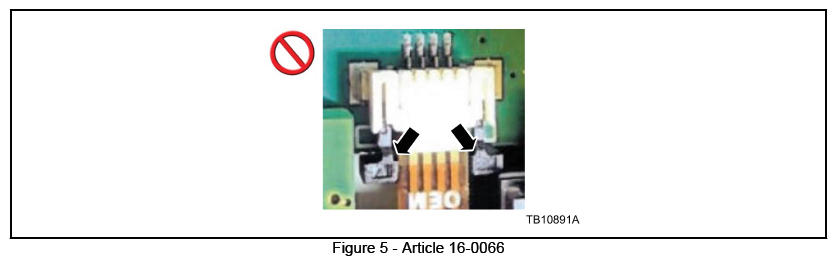
- Inspect the small ribbon cables to make sure they are properly seated and the locking tabs on each side are flipped up. (Figures 5-6)
- Reinstall the back cover on the FDIM. Keep the FDIM separated from the APIM.
- Check the vehicle build date. Was the vehicle built on or before 1-Feb 2016?
- Yes - proceed to Step 10.
- No - proceed to Step 13.
- Is the PICkit tool software installed on the PC?
- Yes - proceed to Step 12.
- No - proceed to Step 11.
- Install the PICkit tool software.
- This procedure requires the installation of software from a CD-ROM. Make sure the PC you are using is equipped with a CD-ROM compatible drive and has a Windows based operating system. Once the software and Excel files are loaded onto the PC, the software installation process does not need to be repeated.
- Insert the PICkit tool CD-ROM into a Windows PC. If the program does not auto run, open the program manually from the start menu. Open the folder labeled Install within the list of files, then open the PICkit 2 folder and click the PICkit2 Setup file.
- Follow the on-screen prompts to install the PICkit tool onto the PC.
- Select a location for the program.
- Allow everyone to access the program.
- Agree to the terms and conditions
- Remove the PICkit tool CD and insert the CD-ROM labeled Excel file.
Find the Excel file labeled Gateway Module Program Update Matrix and copy it onto the desktop.
Remove the CD and continue with programing the FDIM.
- Programing the FDIM using the PICkit tool.
- Open the Excel file located on the desktop.
- A list of vehicles with the appropriate navigation system and update file will be shown. Select the proper update file based on the vehicle being serviced and copy that file onto the desktop.
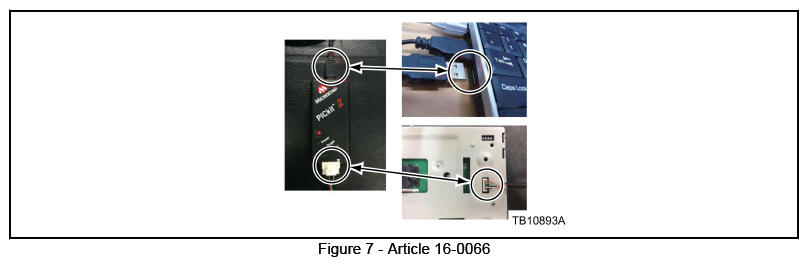
- Connect the emulator harness from the DM8 kit to the back of the FDIM. (Figure 7)
- Connect the USB cable from the emulator to the PC.
- Locate the PICkit 2 v2.61 icon on the desktop and double click to open the program.
- If the emulator is properly connected and the device will automatically be recognized when opened. If the device is not recognized, make sure the emulator is properly connected.
- On the PICkit 2 programmer screen, under the Microchip VDD PICkit 2 there will be a box with a number in it. The check box must be set to On and the numerical value must be set to 3.3.
- Click the file at the top left of the screen and select Import Hex.
- Select the Hex file you transferred to the desktop and click open.
- If the FDIM was properly programmed, the main PICkit 2 programmer screen will show the words Hex file successfully imported in the yellow box.
- Underneath the yellow text box, click the button labeled Write.
- Once the file is successfully written to the module, the box will turn green with Programming Successful displayed.
- Reinstall the FDIM and APIM. Refer to WSM, Section 415-00.



WARRANTY INFORMATION
WARRANTY STATUS:
Eligible Under Provisions Of New Vehicle Limited Warranty Coverage.
Warranty/ESP coverage limits/policies/prior approvals are not altered by a TSB. Warranty/ESP coverage limits are determined by the identified causal part and verified using the OASIS part coverage tool.
| BASIC PART NO. | CONDITION CODE |
|---|---|
| 10D885 | 12 |